
Why IPTV Is Not Working on Samsung TV? Causes and Solutions
If IPTV is not working on your Samsung TV, it is usually caused by a weak internet connection, an outdated app, a full cache...
On this page (9)
- Why Is IPTV Not Working on Your Samsung TV?
- How Does an Unstable Internet Connection Block IPTV on Samsung TV?
- Is the IPTV App Updated and Compatible With Your Samsung TV?
- Why Does a Full Cache and Corrupted Data Cause Freezing?
- Are Network and DNS Settings Blocking Your IPTV Service?
- Is the Problem Coming From Your IPTV Provider or Subscription?
- How to Permanently Fix IPTV Problems on Samsung TV?
- FAQ: Common Questions About IPTV Not Working on Samsung TV
- Conclusion
If IPTV is not working on your Samsung TV, it is usually caused by a weak internet connection, an outdated app, a full cache, incorrect network settings, or a problem on the provider’s side. The good news is that most of these issues can be fixed in just a few minutes without any technical help.
With a reliable and stable IPTV provider like UK IPTV , you greatly reduce the risk of freezing, buffering, and black screens, because server quality directly affects how smoothly the stream plays.
In this clear and simple guide, we explain every possible cause and the exact solution to apply so your IPTV works properly again on your Samsung TV.
Why Is IPTV Not Working on Your Samsung TV?
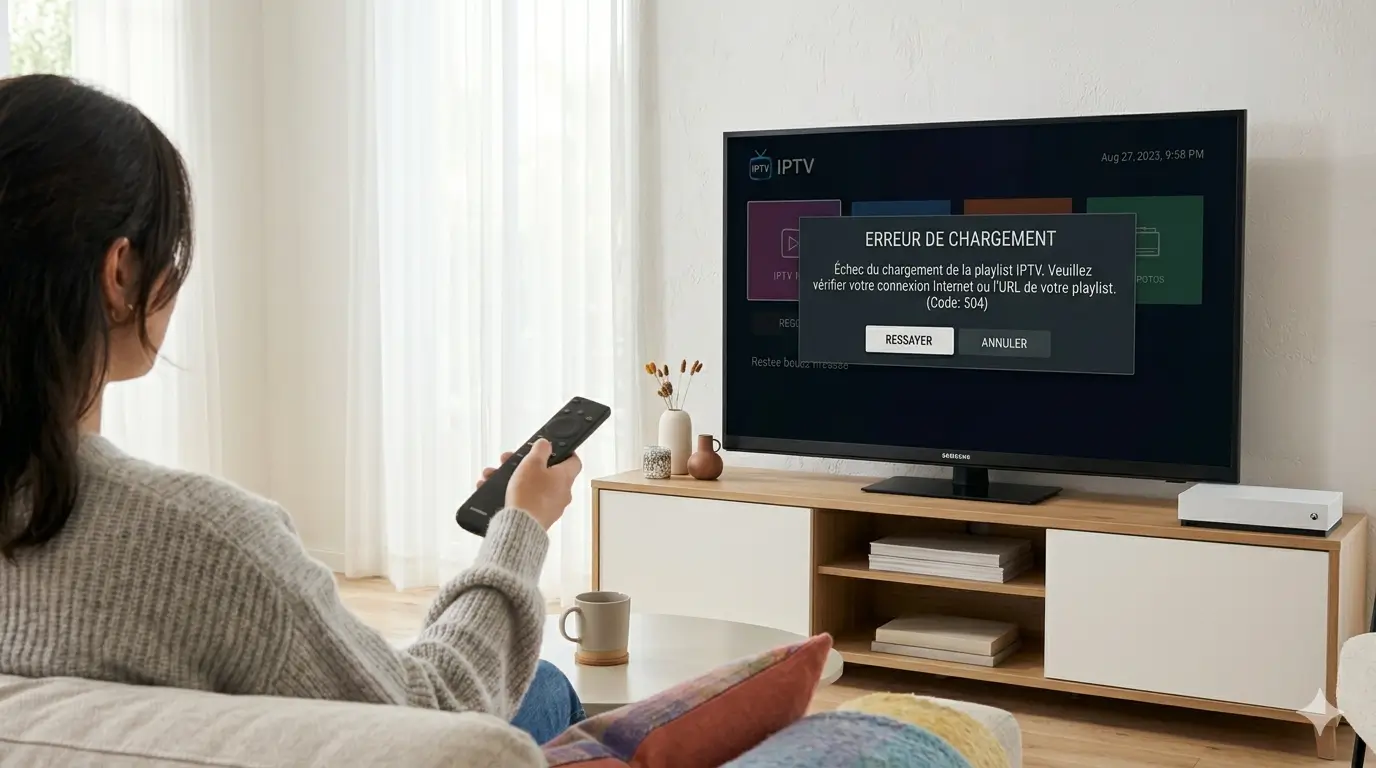
IPTV does not work on a Samsung TV mainly because one link in the streaming chain is broken: internet, app, server, or settings. The television needs a continuous flow of data to display live channels, and the smallest interruption causes a frozen image, a black screen, or an error message.
In most cases, the problem does not come from the TV itself, but from the connection or the software configuration. Identifying the exact source is the first step to fixing the issue quickly.
The sections below detail each common cause, organized from the simplest to the most technical, so you can move step by step toward the right solution.
How Does an Unstable Internet Connection Block IPTV on Samsung TV?
An unstable internet connection is the number one cause of IPTV problems on a Samsung TV, because the service depends entirely on a continuous data stream.
If your speed drops or the Wi-Fi signal is weak, the image freezes, the quality decreases, or playback stops completely. A stable speed of at least 15 to 25 Mbps is recommended for smooth high-definition streaming.
Wi-Fi is often less reliable than a wired connection, especially when the TV is far from the router. To check whether the internet is the issue, open another online app on the same TV: if it also struggles, the problem clearly comes from the network and not from IPTV.
Is the IPTV App Updated and Compatible With Your Samsung TV?
An outdated IPTV app or one that is incompatible with Samsung’s Tizen system very often prevents the service from working correctly. Samsung televisions use their own operating system, and some older apps are no longer supported after a TV software update.
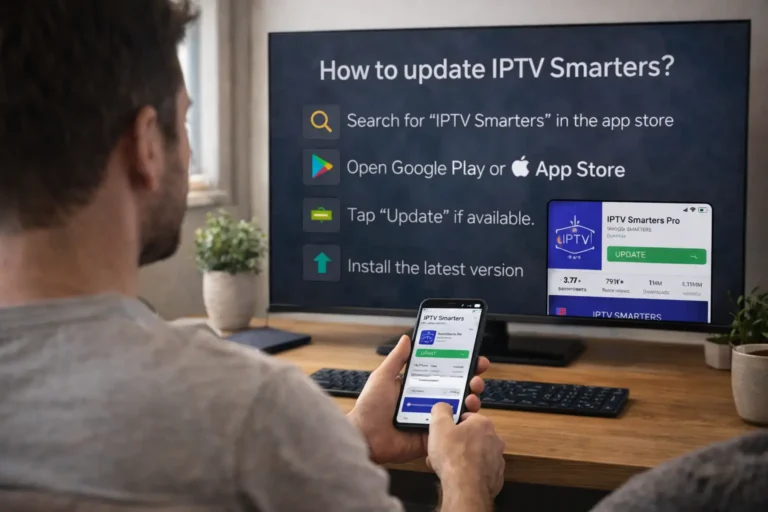
If the app crashes at launch, no longer loads channels, or shows a permanent error, an outdated version is likely the cause. The solution is to check for available updates, reinstall the app, or use a compatible app recommended by your provider.
Keeping the app up to date also ensures better security and more stable playback over the long term.
Why Does a Full Cache and Corrupted Data Cause Freezing?
A full cache or corrupted data inside the IPTV app significantly slows down the television and causes recurring frozen images. Over time, the app stores temporary files that eventually overload its performance and create conflicts. This results in very long loading times, sudden crashes, or channels that refuse to open.
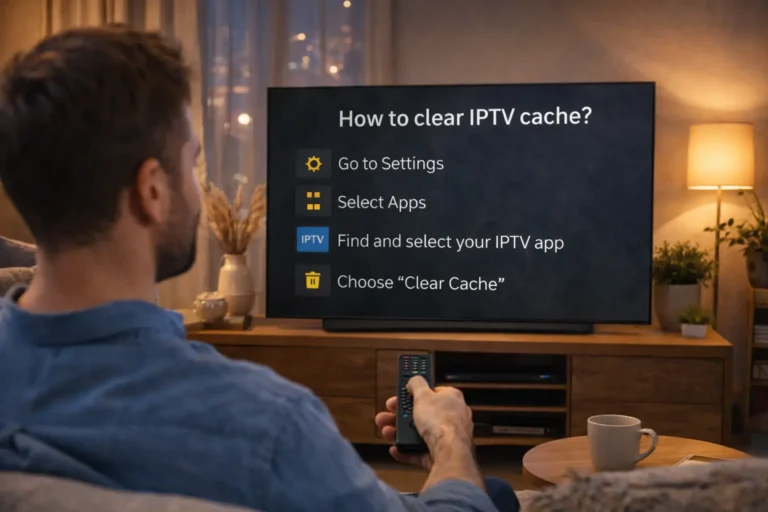
Clearing the cache and data of the app often restores the service to a fresh state without losing anything from your subscription. This simple action, available in the TV settings, is one of the first reflexes to adopt before considering a more complex cause.
Are Network and DNS Settings Blocking Your IPTV Service?
Incorrectly configured network or DNS settings can prevent your Samsung TV from reaching your IPTV service servers. Sometimes the internet provider or a router setting slows down or blocks certain streams, which causes the connection to the service to fail. Changing the TV’s DNS settings or restarting the router frequently restores communication with the servers.
A firewall that is too restrictive or a limited public network can also be responsible for the block. For your rights as a digital service consumer in the UK, you can review official information from the Office of Communications (Ofcom), a reliable and high-authority resource.
Is the Problem Coming From Your IPTV Provider or Subscription?
When everything works on your side but IPTV remains inaccessible, the problem often comes from the provider itself or the status of your subscription. An overloaded server during peak hours, ongoing maintenance, or an expired subscription can block access to channels without any fault on your TV.
First check the validity date of your subscription, then contact technical support to confirm the status of the servers. A serious provider has responsive support and a stable infrastructure that limits these interruptions.
For detailed advice and illustrated steps, see our complete IPTV troubleshooting guide that covers each device step by step.
How to Permanently Fix IPTV Problems on Samsung TV?
To permanently fix IPTV problems on a Samsung TV, you need to address the causes in the right order, from the simplest to the most technical. Always start by checking the internet connection, then the app, then the cache, and finally the network settings.
This logical method avoids wasting time and allows you to quickly identify the faulty element. Choosing a stable provider from the start remains the best prevention against repeated outages. By applying the steps below methodically, you restore the service in the vast majority of cases without outside assistance.
Here are the troubleshooting steps to follow in order:
- Check the internet : test the speed and prefer a wired connection if possible.
- Restart the devices : turn off the TV and router for 30 seconds.
- Update the app : install the latest available version.
- Clear the cache : delete the app’s temporary data.
- Change the DNS : try an alternative DNS in the network settings.
- Verify the subscription : confirm its validity with the provider.
- Contact support : report the issue if nothing works.
The following table summarizes the most common symptoms, their likely cause, and the recommended solution:
| Observed Symptom | Likely Cause | Recommended Solution |
| Black screen at launch | Weak internet connection | Restart the router, switch to wired |
| Image freezes often | Full cache or unstable speed | Clear the cache, check the speed |
| App keeps crashing | Outdated or incompatible version | Update or reinstall the app |
| Channels won’t load | Blocked DNS or network settings | Change the DNS, restart the network |
| Access error message | Expired subscription or server down | Verify subscription, contact support |
| General slowness | Overloaded TV memory | Clear data and restart the TV |
A few quick checks you can do in under two minutes:
- Test another online app on the same television.
- Verify that other devices receive the Wi-Fi properly.
- Confirm that the subscription date has not expired.
- Make sure the TV has the latest system updates installed.
FAQ: Common Questions About IPTV Not Working on Samsung TV
Why does my IPTV show a black screen on Samsung TV?
A black screen most often comes from a weak internet connection or a temporarily unavailable server. Restart the router and the TV, then try again.
How do I clear the cache of an IPTV app on Samsung TV?
Go to the TV settings, open the apps section, select the IPTV app, then choose the option to delete the cache and data.
Is a 10 Mbps internet speed enough for IPTV?
It is generally not enough for high definition. A stable speed of 15 to 25 Mbps is recommended for smooth playback without interruptions.
Should I use a wired connection or is Wi-Fi enough?
Wi-Fi works, but a wired connection is more stable and clearly reduces frozen images, especially when the TV is far from the router.
Why does the IPTV app crash after a TV update?
A system update can make an older app version incompatible. Reinstall the app or use a version recommended by your provider.
My subscription is valid but nothing works, what should I do?
The problem is likely an overloaded server or maintenance. Contact your provider’s technical support to confirm the service status.
Can changing the DNS really fix IPTV?
Yes, a misconfigured DNS can block access to the servers. Changing the DNS in the network settings often restores the connection to the service.
Conclusion
When IPTV is not working on a Samsung TV, the cause almost always lies in the internet connection, the app, the cache, the network settings, or the provider itself. By following the troubleshooting steps in the right order, you solve the vast majority of issues in just a few minutes.
Choosing a reliable provider with stable servers and responsive support remains the best guarantee of an uninterrupted experience over the long term. Adopt these simple habits and your service will become smooth and enjoyable to use again every day.
Your free trial login works in every app in this article. Twelve hours of the full service, no card, then choose a plan or stop.
- No credit card
- Login by email in minutes
- Setup guides for every device
