
How to Clear Favourites on IPTV?
Clear favourites on IPTV in minutes. Learn how to remove single channels, bulk delete, refresh your list, and fix common issues...
On this page (6)
To clear favorites on IPTV, you’ll first press the Menu or Settings button on your remote. Navigate to the Favorites section using arrow keys, then highlight unwanted channels and press OK. Select “Remove from Favorites” from the context menu that appears.
For bulk deletion, access Channel Settings in your IPTV subscription and select “Clear All Favorites.” If you experience issues, restart your device and clear the app’s cache. Keep in mind that different devices may offer unique shortcuts that make managing favorites in your IPTV subscription even easier.
1. Open the Menu or Settings
Start by pressing the Menu or Settings button on your IPTV remote.
This gives you access to the app’s configuration options, including your saved favorites list.
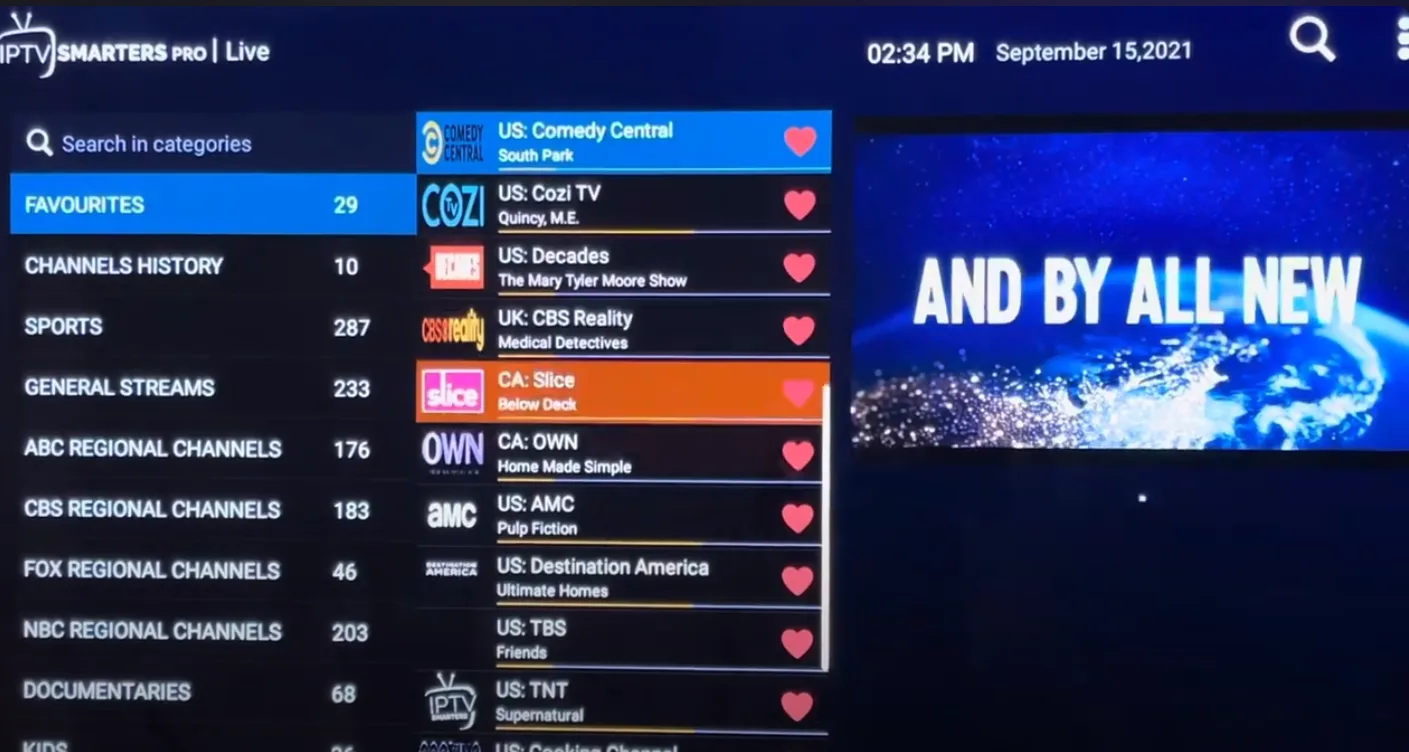
2. Navigate to the Favorites Section
Use the arrow keys on your remote to scroll to the Favorites section.
Here, you’ll see the list of channels you’ve previously marked as favorites.
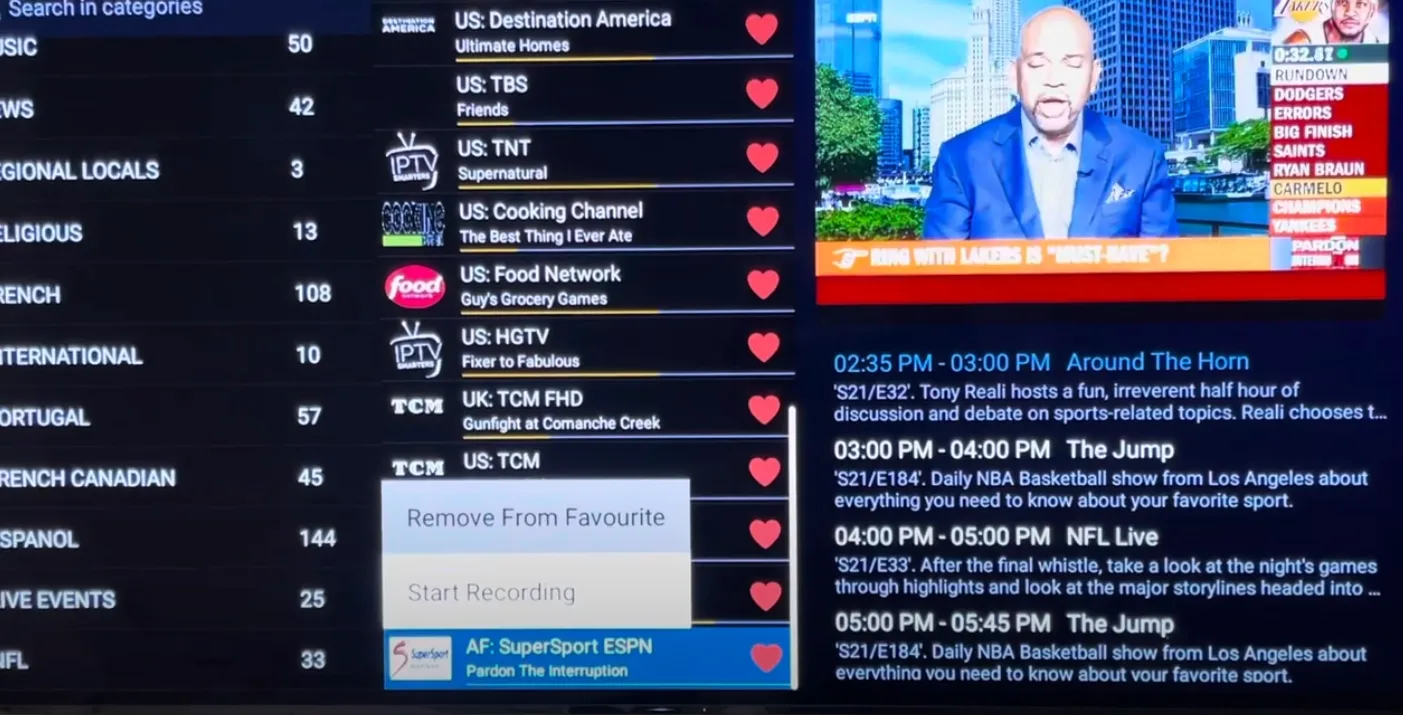
3. Select and Remove Channels
Highlight the channel you want to delete from favorites and press OK.
A context menu will appear—choose “Remove from Favorites” to delete it. Repeat this step for each channel you want to remove
4. Clear All Favorites (Bulk Deletion)
For faster cleanup, go to Channel Settings and look for the option “Clear All Favorites.”
Selecting this will remove every saved favorite at once.
5. Restart and Refresh
If the changes don’t appear right away, restart your IPTV device and clear the app’s cache.
This ensures your favorites list is updated and runs smoothly. From the menu, you can also customize other IPTV settings like subtitles and audio preferences.
Frequently Asked Questions
Will Clearing Favorites Affect My Subscription or Billing Status?
No, clearing your favorites won’t affect your subscription impact or billing questions. It’s just removing your saved channel list. Your account, payment status, and channel access remain unchanged. You’re only deleting personalized bookmarks, nothing financial.
Yes, you can backup favorites before clearing. First, check your IPTV app’s settings for “favorite management” or export options. Screenshot your list or write them down manually. Some apps offer data backup features under preferences menu.
Can I Backup My Favorites List Before Clearing Them?
Do Cleared Favorites Sync Across Multiple Devices Automatically?
No, cleared favorites don’t automatically sync. You’ll need to manually clear favorite settings on each device separately. Check your IPTV app’s device synchronization options – some providers offer cloud sync, but it’s not standard across all platforms.
Is There a Limit to How Many Favorites I Can Add?
Most IPTV apps don’t limit favorites, but you’ll find favorite management becomes harder with too many channels. For better favorite organization, you’d typically want to keep under 50-100 channels to maintain easy navigation and quick access.
Can I Recover Accidentally Deleted Favorites From My Account?
Unfortunately, you can’t recover accidentally deleted favorites once they’re removed. Your favorite recovery options are limited – there’s no built-in feature for restoring deleted favorites. You’ll need to manually re-add any channels you’ve accidentally removed from your list.
Read more about clear your IPTV cache.


Your free trial login works in every app in this article. Twelve hours of the full service, no card, then choose a plan or stop.
- No credit card
- Login by email in minutes
- Setup guides for every device
