
How to Install IPTV on IPTV Stream Player App?
How to Install IPTV on IPTV Stream Player App ? - To install IPTV on the IPTV Stream Player app, connect your device to a stable internet
On this page (5)
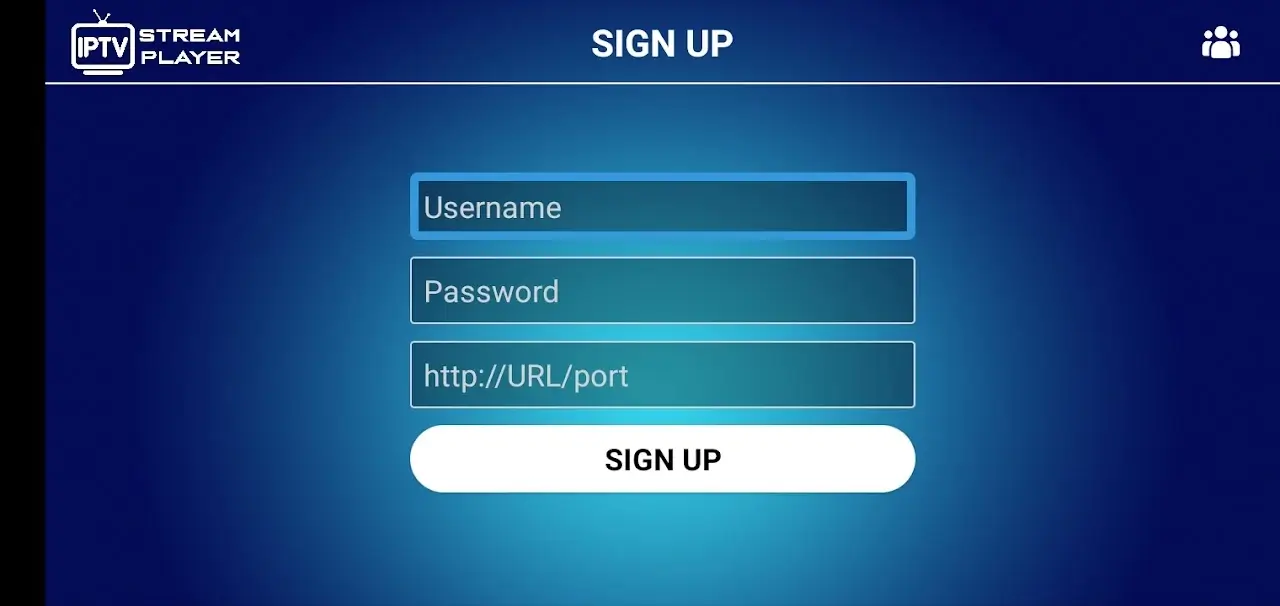
To install IPTV on the IPTV Stream Player app, connect your device to a stable internet and download the app from the Google Play Store. Open the app, go to settings, and input your IPTV M3U playlist URL or Xtream Codes.
If you’re using UK IPTV as your provider, carefully enter your subscription details, username and password, and save the settings. Refresh the playlist to load channels, ensuring your connection remains optimal. Continue on to unlock additional insights for a seamless streaming experience.
1. Download and Install IPTV Stream Player
On Android: Go to the Google Play Store and search for “IPTV Stream Player.” Download and install the app.
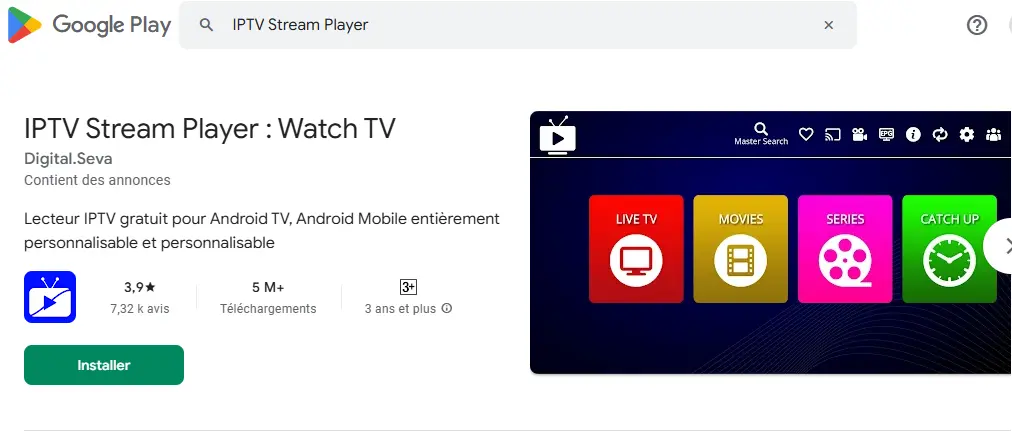
On iOS: Open the App Store and search for “IPTV Stream Player,” then download the app.
2. Add Your IPTV Playlist
Once the installation is complete, open the app on your device.
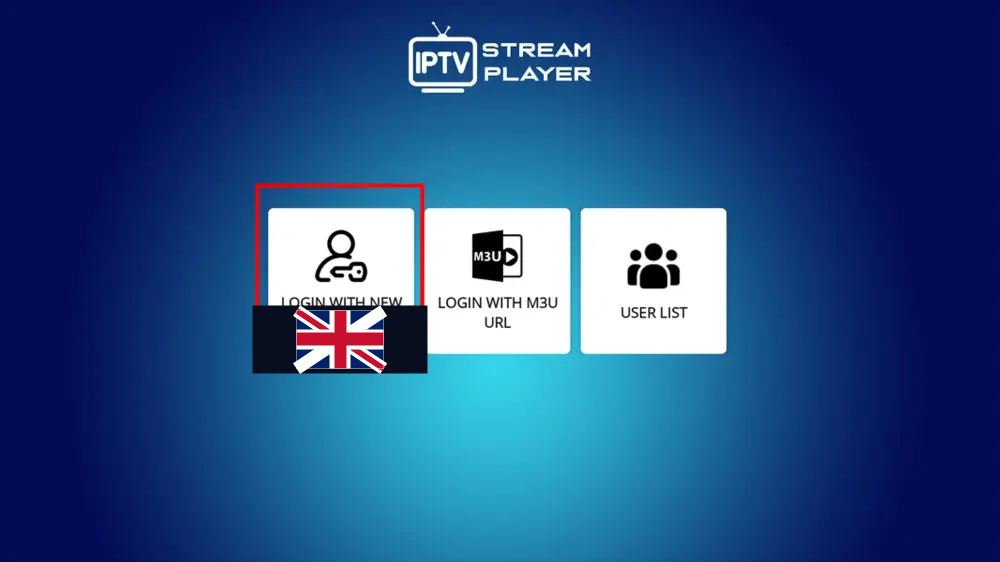
Option 1: Add via URL
If you have an M3U playlist link (provided by your IPTV provider), click on “Add Playlist” in the app.
Enter your M3U playlist URL in the designated field.
Click “Add” to add the playlist.
Option 2: Add via M3U File
If you have an M3U file saved on your device, click “Add Playlist” and select the M3U file from your local storage.
The file will be automatically added to the app.
4. Configure Settings (Optional)
If needed, you can customize playback settings in the app, such as language, subtitles, video quality, etc.
Go to Settings to adjust according to your preferences.
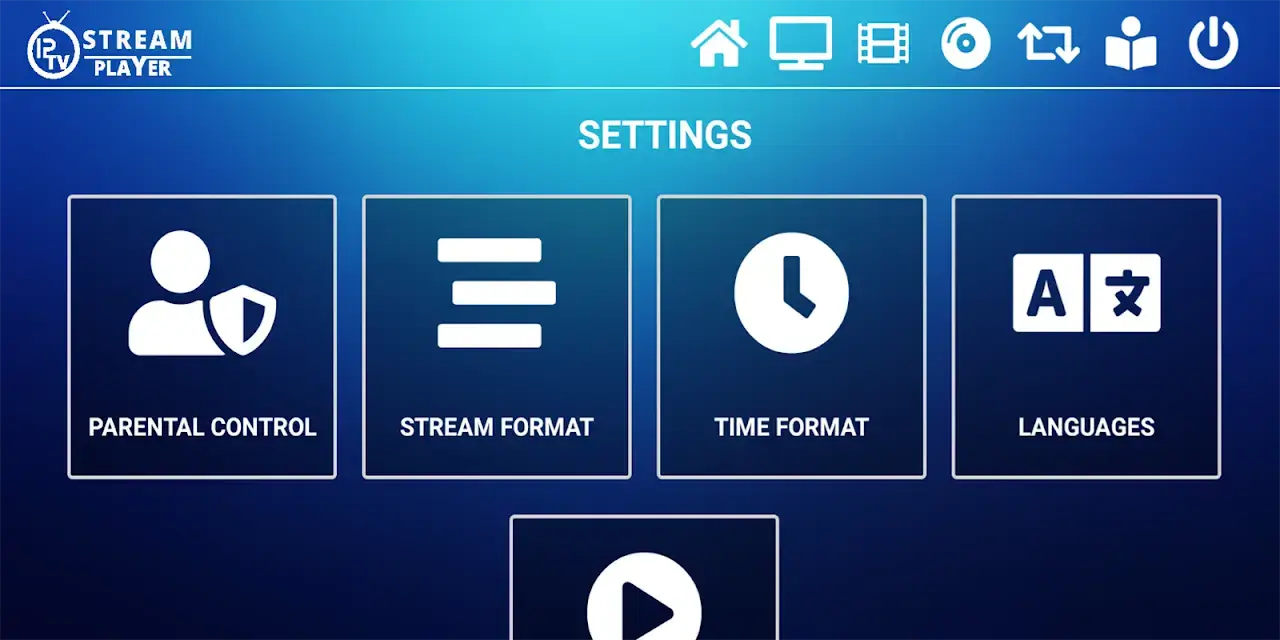
5. Start Watching Channels
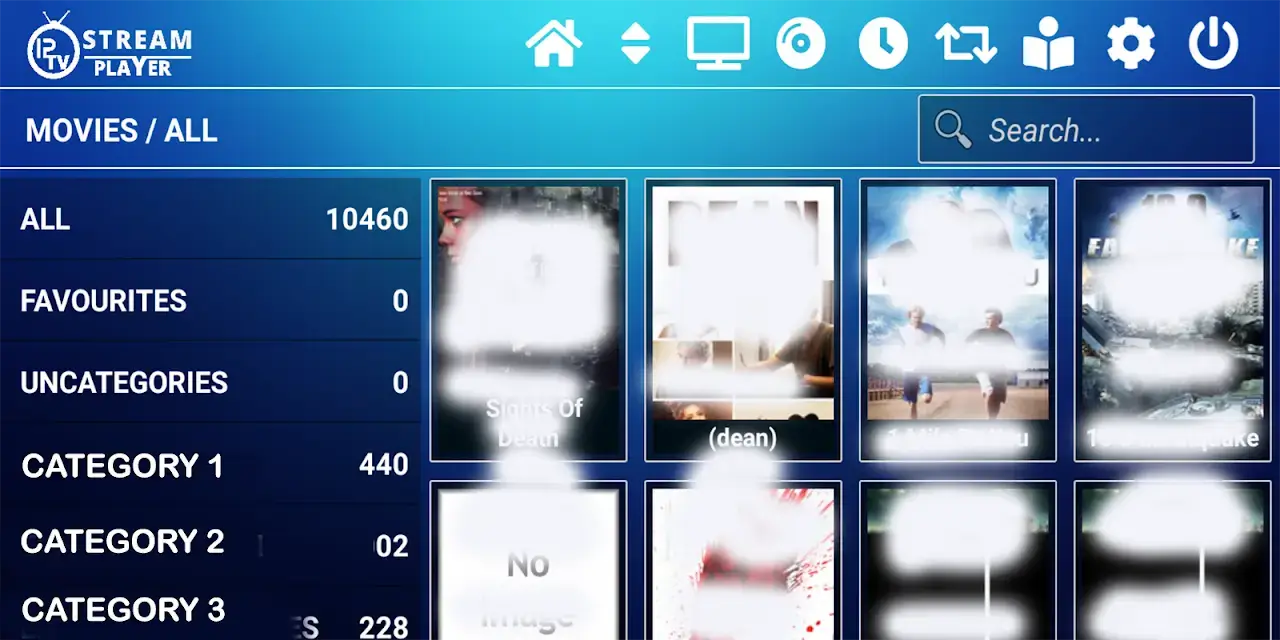
Once the playlist is added, you will see the available channels in the app. Click on a channel to start watching live content.
You can now enjoy IPTV channels on the IPTV Stream Player app, with direct access to channels based on your playlist.
Frequently Asked Questions
How Do I Set up an IPTV Stream Player?
For your IPTV setup guide, download and install the app. Input your IPTV provider’s details in settings. Explore stream player features. Save settings, refresh playlists. Troubleshoot IPTV issues by checking your connection or contacting the best IPTV providers.
How Do I Add Channels to My IPTV Player?
To add channels, go to the playlist section of your IPTV player. Input channel sources using supported playlist formats like M3U. Ensure streaming quality by subscribing to reliable services, then save and refresh your playlist for updates.
How Do I Add to IPTV?
To add channels to IPTV, access your IPTV service’s settings. Enter the M3U playlist URL or Xtream Codes. Check the user interface for channel options. Refresh to enhance streaming quality and ensure optimal viewing.
Your free trial login works in every app in this article. Twelve hours of the full service, no card, then choose a plan or stop.
- No credit card
- Login by email in minutes
- Setup guides for every device
