
How to Install IPTV on IBO Player?
How to Install IPTV on IBO Player ? - Start by downloading the IBO Player app from your smart TV's app store. Once installed, open the app...
On this page (6)
Start by downloading the IBO Player app from your smart TV’s app store. Once installed, open the app and go to Settings to record your unique MAC address and device key. Visit iboplayer.com to register your device using the details you’ve obtained.
After registration, add your IPTV playlist by entering the URL or uploading the file within the app. For IPTV providers like UK IPTV, ensure all information is correct and try restarting the app if needed. For more detailed steps, you can refer to further instructions.
1. Download the app for your device
Smart TV (Samsung / LG): Open the Samsung Store or the LG Content Store, then search for IBO Player Pro.
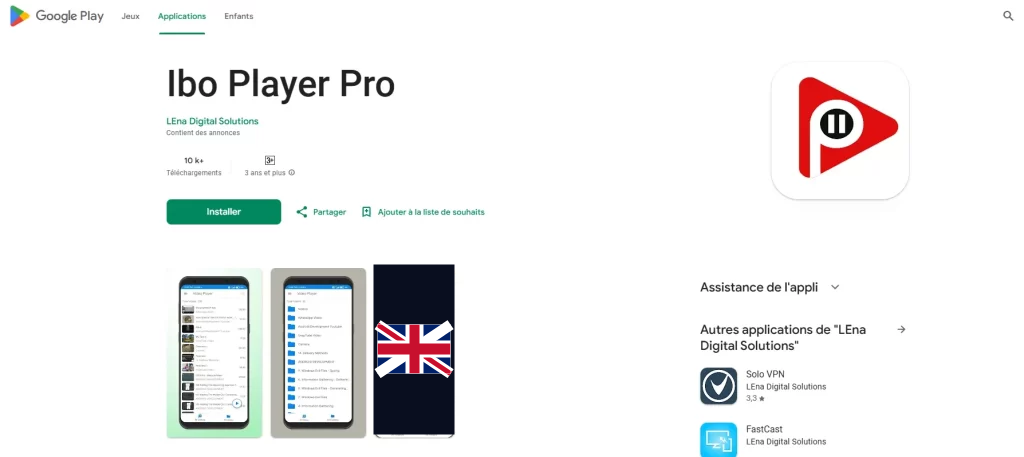
Android / Android TV: Go to the Google Play Store, type in IBO Player Pro, and install the app.
iOS (iPhone / iPad): Download the app from the App Store.
Firestick / Android Box: Use the Downloader app and enter the APK URL available on the official IBO Player website.
2. Launch the app and retrieve your credentials
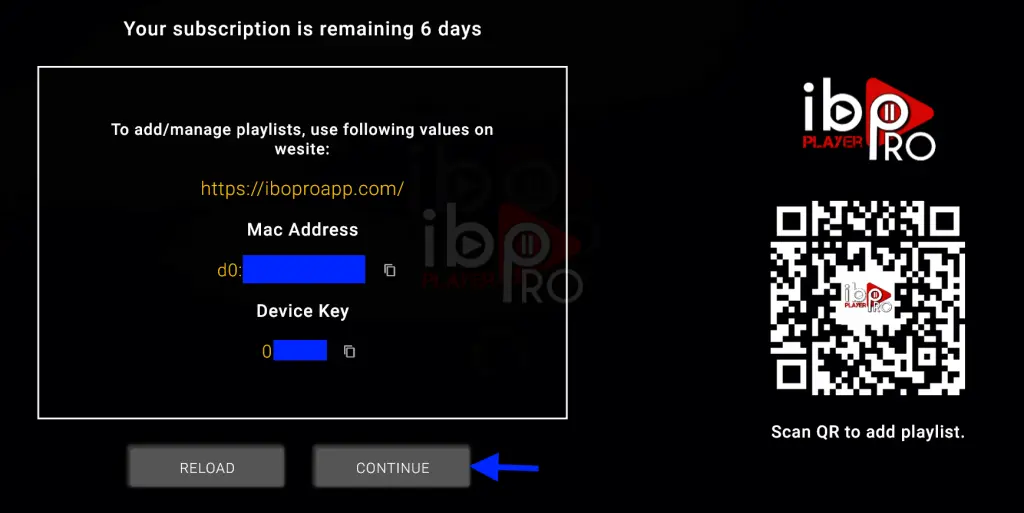
After installing, open the app. Note down the MAC address and Device Key displayed on the screen, as they will be needed for activation.
3. Activate your device
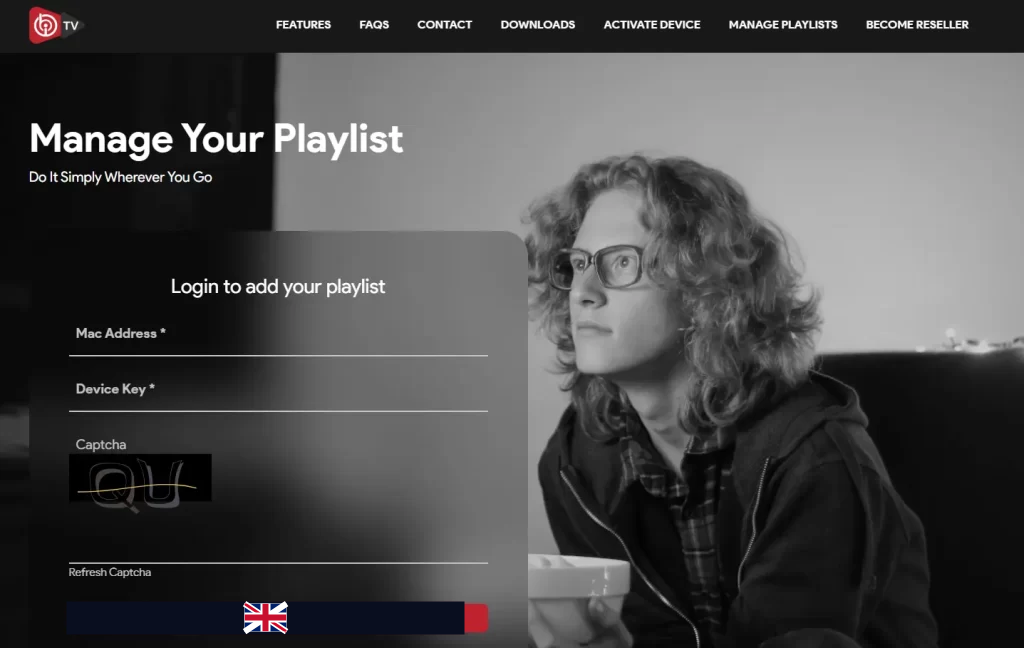
On a browser, go to “iboiptv.com” or “iboplayer.com“.
Click on “Activate Device”.
Enter your MAC address and Device Key.
You can enjoy a free trial period (usually 7 days), after which you can purchase an annual or lifetime license.
4. Add your IPTV playlist
Choose your preferred method of adding the playlist:
Via M3U URL
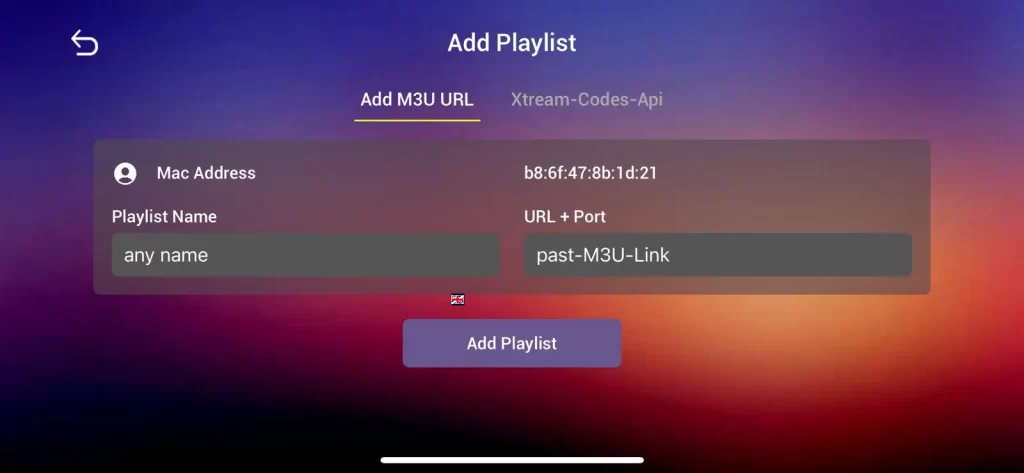
Or via Xtream Codes (URL + username + password).
Then, click “Save” to store your settings.
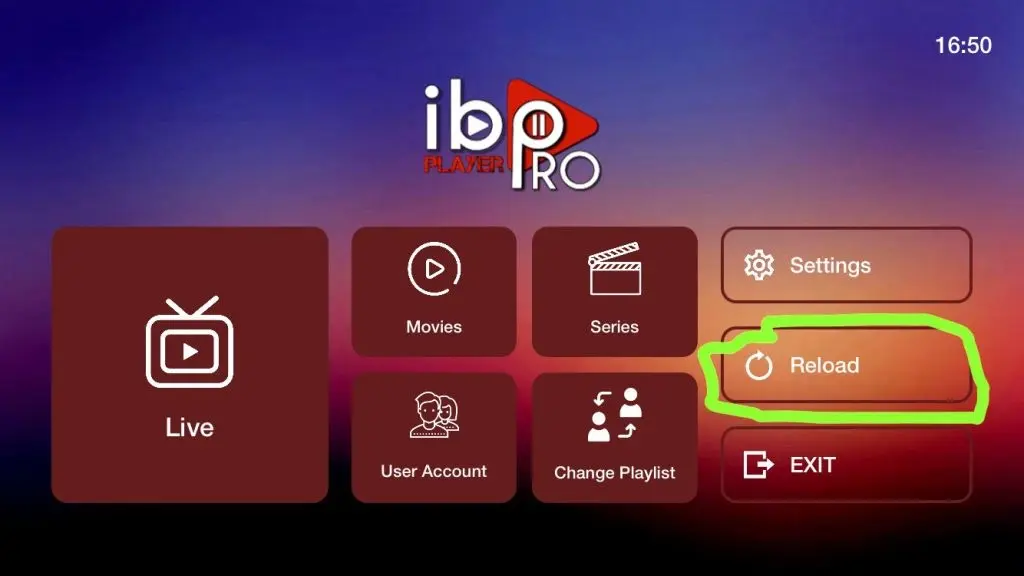
5. Restart the app on your TV
Go back to your TV and restart IBO Player Pro. Your channels (Live TV, movies, series, etc.) will now be organized and accessible in the interface.
Frequently Asked Questions
What Is the Best IBO Player for IPTV?
You’d find IBO Player Pro the best for IPTV. It boasts top features, garnering positive user reviews. Comparison analysis highlights its superiority. Check its setup guide for easy installation and enjoy diverse content on various devices seamlessly.
How Do I Set up IPTV Stream Player?
To set up an IPTV stream player, follow an IPTV setup guide to choose the right stream player options. Check for device compatibility issues, and troubleshoot IPTV connections for seamless streaming. Ensure accurate configuration for optimal performance.
How to Install Free IPTV on Android Box?
To install free IPTV on an Android box, ensure android compatibility. Download the app via Google Play Store. Follow the installation guide carefully. The user interface is straightforward for free streaming after registration with your MAC Address and Device Key.
What Is an IBO TV Player?
You’re asking about the IBO Player. It’s an IPTV app with features like user-friendly interface and parental controls. Compatible with multiple devices, it gets positive reviews for reliability and versatility, offering numerous streaming benefits for diverse preferences.
Your free trial login works in every app in this article. Twelve hours of the full service, no card, then choose a plan or stop.
- No credit card
- Login by email in minutes
- Setup guides for every device
